
Shopify (Legacy)
To integrate your Shopify account with Tap, you first need to have a Tap account. Once your account has been registered, you'll be contacted by our onboarding team to help you select a price plan that works with your business needs and get your account activated.
Once your account with Tap Payments has been activated, follow the steps below to get your API credentials which is needed to connect the Tap payment gateway to your store:
-
Log into your Tap dashboard, using the email and password you created the account with.
-
Select goSell from the menu bar on the top.
Then you can choose API Credentials from the list on the left-hand side. -
Here you’ll find your API Key and your Account ID.
After getting your credentials you need to log into the Shopify Admin Dashboard and from here you’ll be able to easily add Tap as your payment partner. Just follow the steps below:
-
If you haven’t done so yet, first you need to register an account with Shopify.
-
Then Log in to Shopify as an administrator.
-
From the the menu on the left-hand side, select your store.
Activate the Plugin:
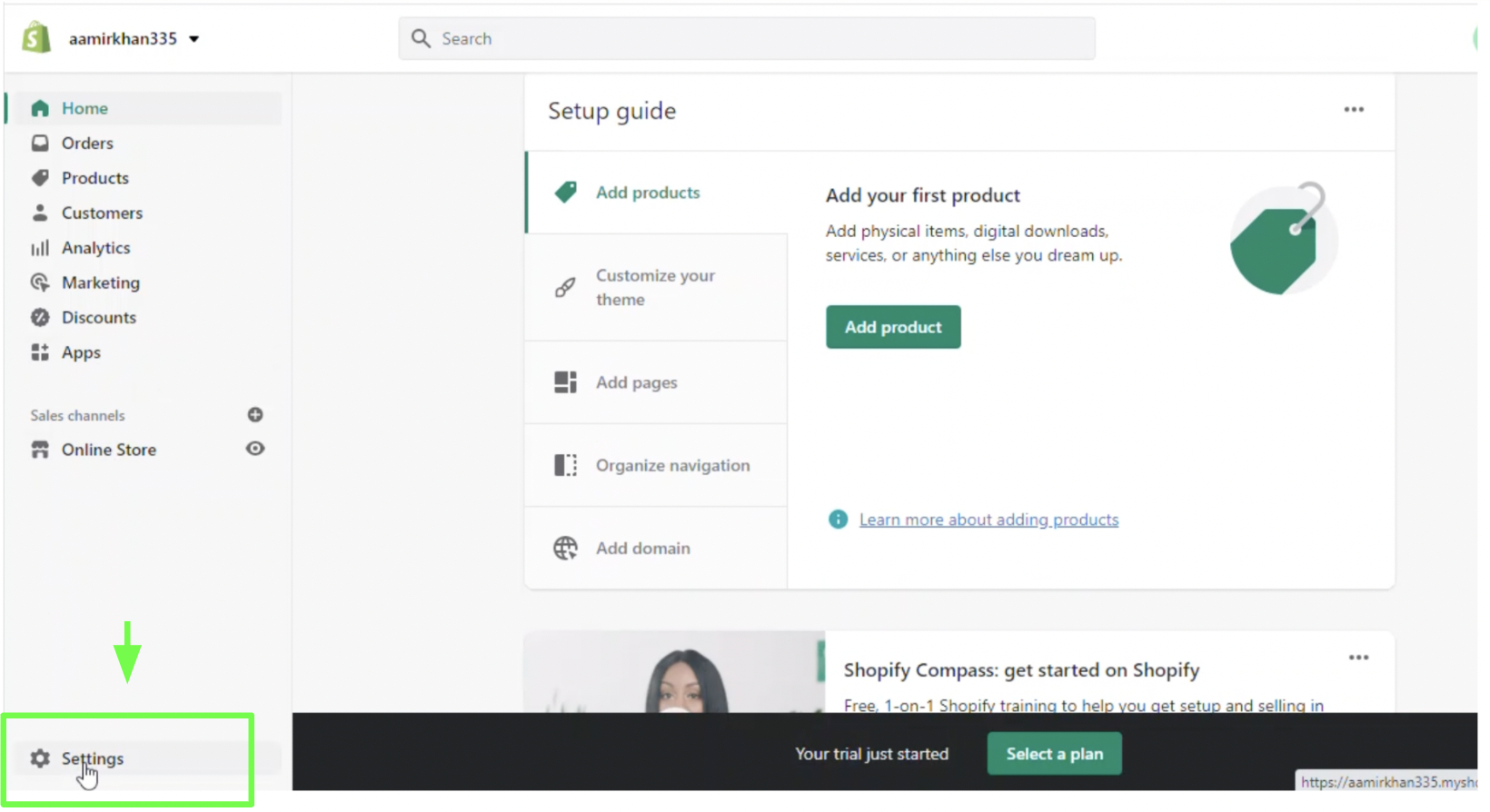
- From The Admin Dashboard page on Shopify, click on Settings on the bottom left hand side.
-
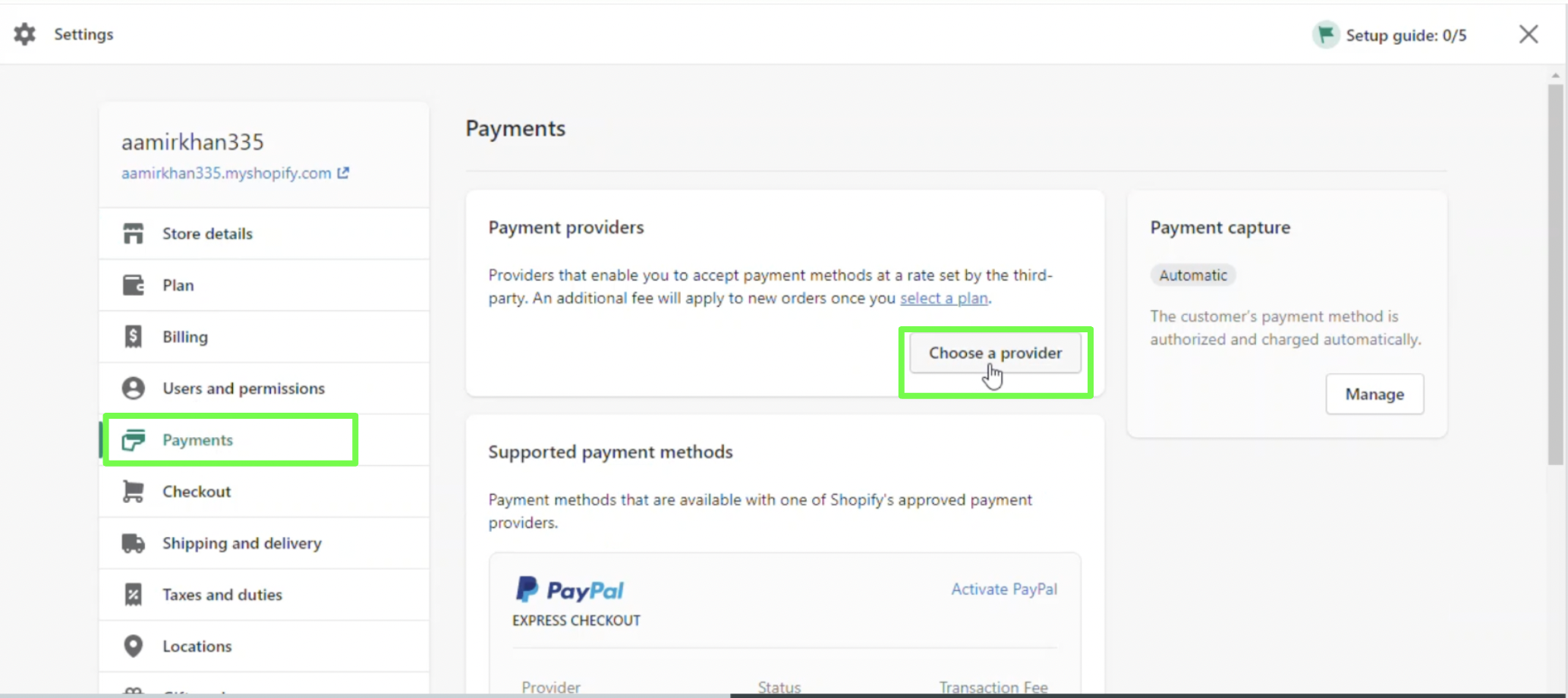
Then, from the Settings page, click on Payments from the menu on the left-hand side of the page.
-
Then, click on Choose a Provider under Payment Providers.
-
Once you click on Choose a Provider, scroll down till you find Tap From the list of Third-Party Payment Providers.
-
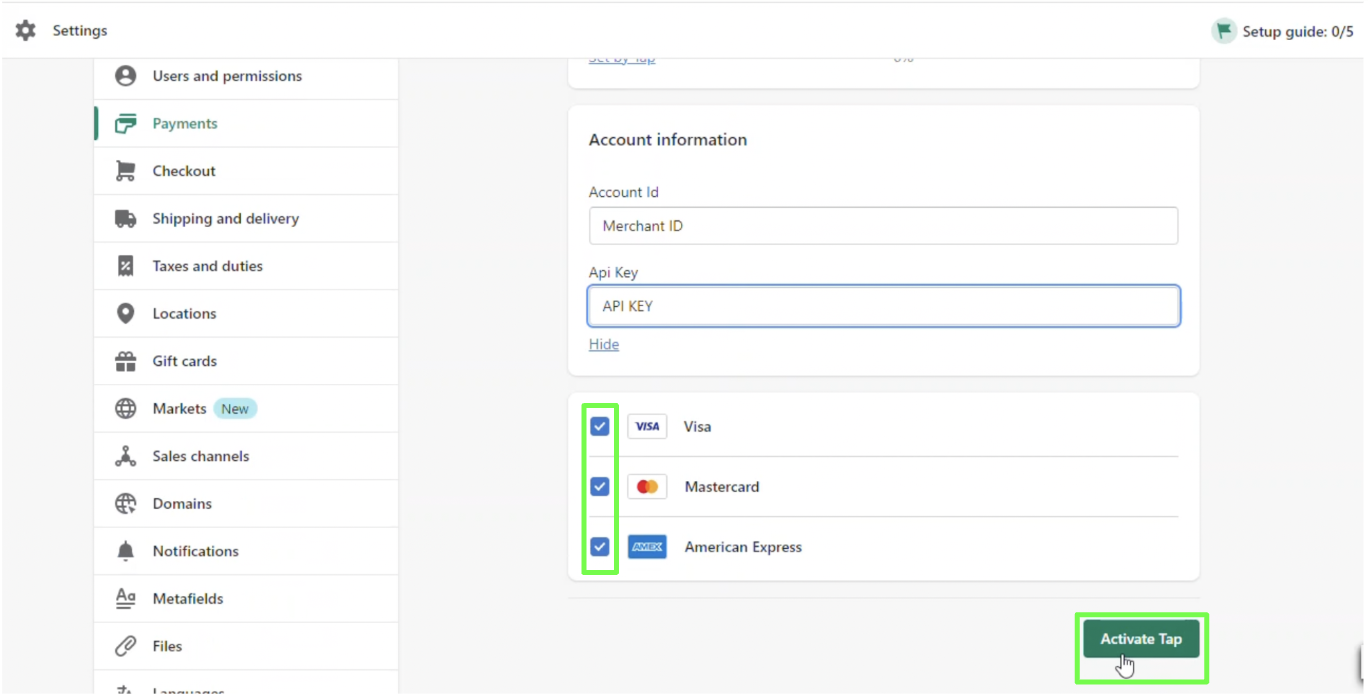
Click on Tap and start filling the required info. Go to the next slide for more details on the required information (Account ID and API Key).
-
Then, click the check mark next to all the payment methods you want to enable within your store
-
Finally click Activate Tap and you’re done.
Updated over 1 year ago