
Overview
Tap Marketplace solution allows you to accept and split payments instantly or based on your request with multiple businesses operating under a Marketplace in a seamless and automated way.
With Tap Marketplace solution you can:
- Accept payments: the marketplace enables you to accept the transactions based on the available payment methods for your country as a normal merchant setup, but it provides the ability to split the captured amount with the retailers or to keep it in the account.
- Split payments: You can split the payments with the onboarded retailers, the split can be instant or based on your request using the APIs.
- Payout: The onboarded retailers will receive the transactions to their wallets on tap and then the transactions will be automatically paid out to their bank accounts based on the payout cycle, and provide the ability to view the retailers payouts.
- Reconcile: Simple reconciliation process by using our dashboard and APIs which will give you the ability to view the marketplace’s transactions and the payouts of each retailer.
Liability:
Legally and operationally the liability will be on the marketplace accounts not on the retailers.
The marketplace accepts the payment under the name of the account and in the statement descriptor the name will be the marketplace name.
For the chargebacks the liability will be on the marketplace as well.
If you would like to have a setup that shifts the liability to the sub merchants, you can contact the [email protected] to know more about the platform setup and the payment technology setup.
Marketplace Integration Flows:
1. Onboarding Flow:
Retailer Onboarding via TapOS Dashboard
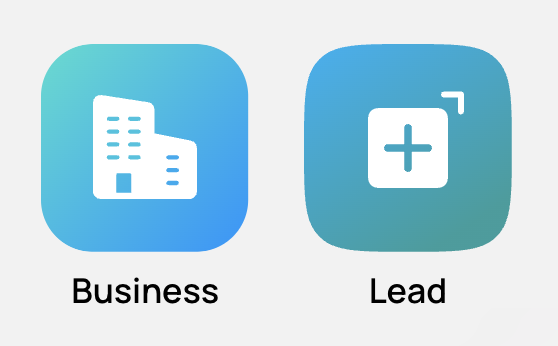
If your account is configured as a marketplace you will be able to see the Lead and Business apps.
You can create a lead from the lead app and then convert the lead to be a retailer.
Viewing Onboarded Retailers
Currently, marketplaces can view already onboarded retailers by logging into the TapOS Dashboard and navigating to:
https://os.tap.company/
Then, navigate to the Wallet section, where all onboarded retailers’ wallets will be displayed.
You can also go to the Business section to view the KYC details for all onboarded retailers.
Retailer Onboarding via APIs
Retrieve Marketplace API Keys
The marketplace can retrieve the required API keys from the TapOS Dashboard by navigating to: https://os.tap.company/
→ Account → Operators → Your Merchant ID
- For onboarding test retailers, use the test secret key in the test environment.
- For onboarding in the live environment, use the live secret key.
Note: In KSA all data submitted in the API requests must be valid, even in the test environment. The Create Lead API validates data through trusted third-party providers, so dummy or invalid information may cause request failures.
To onboard a new retailer through APIs, two APIs must be called using the marketplace keys.
-
This API must be used to create a lead for the retailer (sub-account under the marketplace).
- It generates a lead ID.
- The marketplace object in the request must include the MID of the marketplace itself.
Important Notes: - All submitted data must be accurate and valid. (including the commercial registration), because our team has to review and activate the accounts
- Validation checks are performed even in test mode(In KSA).
Create a Lead Request and Response Example
curl --location 'https://api.tap.company/v3/lead/' \
--header 'Authorization: Bearer sk_live_GKZF************ujVH' \
--header 'Content-Type: application/json' \
--data-raw '{
  "segment": {
    "type": "BUSINESS",
    "sub_segment": {
      "type": "RETAILER"
    }
  },
  "country": "SA",
  "brand": {
    "channel_services": [
      {
        "channel": "website",
        "address": "https://www.testretailer.com"
      }
    ],
    "name": [
      {
        "text": "Test Retailer 2",
        "lang": "en"
      },
      {
        "text": "تاجر تجريبي 2",
        "lang": "ar"
      }
    ]
  },
  "entity": {
    "license": {
      "number": "123456789",
      "unified_number": "123456789",
      "country": "SA",
      "type": "LLC",
      "documents": [
        {
          "name": "commercial_registration",
          "number": "123456789",
          "issuing_country": "SA"
        }
      ]
    },
    "legal_name": [
      {
        "text": "Test Retailer Legal 2",
        "lang": "en"
      }
    ]
  },
  "wallet": {
    "linked_financial_account": {
      "bank": {
        "account": {
          "name": "Beneficiary Name",
          "iban": "SA123000000456789"
        },
        "documents": [
          {
            "name": "bank_statement",
            "issuing_country": "SA"
          }
        ]
      }
    },
    "name": [
      {
        "text": "Wallet Display name text",
        "lang": "en"
      }
    ]
  },
  "marketplace": {
    "id": "18012229"
  },
  "post": {
    "url": "https://webhook.site/123456789"
  },
  "users": [
    {
      "contact": {
        "email": [
          {
            "address": "[email protected]",
            "primary": "true"
          }
        ],
        "phone": [
          {
            "country_code": "966",
            "number": "555555555",
            "primary": "true"
          }
        ]
      },
      "identification": {
        "number": "1234567890",
        "type": "national_id",
        "country": "SA",
        "nationality": "SA"
      },
      "primary": "true",
      "name": [
        {
          "first": "First",
          "middle": "Middle",
          "last": "Last",
          "lang": "en"
        }
      ]
    }
  ]
}'
{
"id": "led_nkUaS24268263HJs4HW2r712",
"status": "active",
"created": 1772612784712,
"object": "lead",
"live_mode": true,
"api_version": "v3",
"feature_version": "v1",
"country": "SA",
"pending_action": "tap",
"last_contact": 0,
"segment": {
"type": "BUSINESS",
"sub_segment": {
"type": "RETAILER"
}
},
"brand": {
"id": "brd_nfUaS25134345j4bY20200",
"name": [
{
"lang": "ar",
"text": "Arabic Brand Name"
},
{
"lang": "en",
"text": "English Brand Name"
}
],
"channel_services": [
{
"id": "sales_channel_L3me8221219f4rQ28dX9v337",
"code": "website",
"name": {
"ar": "متجر الكتروني",
"en": "Website"
},
"address": "https://tap.website",
"logo": "https://dash.b-cdn.net/icons/menu/website_v2.svg",
"channel": "website"
}
]
},
"users": [
{
"name": [
{
"title": "Mr.",
"first": "Ahmed",
"last": "Mohamed",
"lang": "en"
}
],
"contact": {
"email": [
{
"address": "[email protected]",
"primary": true
}
],
"phone": [
{
"country_code": "966",
"number": "555555555",
"primary": true
}
]
},
"identification": {
"number": "1234567890",
"country": "SA",
"type": "national_id",
"nationality": "SA"
},
"primary": true,
"is_provided": true
}
],
"entity": {
"legal_name": [
{
"lang": "en",
"text": "Business Legal Name"
}
],
"carries_a_license": true,
"license": {
"number": "123456789",
"country": "SA",
"type": "LLC",
"provider": "wathq",
"issuing_date": "2016-04-17",
"unified_number": "123456789"
}
},
"marketplace": {
"id": "merchant_e6UaS3023333k12aR0B517",
"brand": {
"id": "brd_nfUaS25134345j4bY20200",
"status": "Active",
"created": 1768196654237,
"name": [
{
"lang": "ar",
"text": "Arabic Brand Name"
},
{
"lang": "en",
"text": "English Brand Name"
}
],
"logo": "file_aqXF522111gMgM4Fi1v604"
},
"legacy_id": "18012229"
}
}- Create an Account (Retailer)
API: Create an Account (Retailer)
After successfully generating a lead ID, this API is used to:- Convert the lead into a retailer account.
- Generate and return the retailer.id
Create an Account Request and Response Example
curl --location 'https://api.tap.company/v3/connect/account' \
--header 'Authorization: Bearer sk_live_GKZF************uj' \
--header 'Content-Type: application/json' \
--header 'accept: application/json' \
--data '{
        "lead_id": "led_nkUaS24268263HJs4HW2r712"
}
'
{
"auth": {},
"lead": {
"id": "led_nkUaS24268263HJs4HW2r712",
"status": "registered",
"contact": {
"email": "[email protected]",
"phone": {
"country_code": "966",
"number": "126554704"
}
}
},
"retailer": {
"id": "68025843",
"status": {
"payout": false
}
}
}Update Lead API
In some cases, the Create an Account (Retailer) API may return errors related to:
- Missing fields
- Incorrect data submitted during the Create Lead step
To avoid creating a new lead from scratch, the Update Lead API can be used.
This API allows you to:
- Modify the existing lead information
- Correct any missing or invalid fields
- Reuse the same lead ID when calling the Create Account API again
Payout Enabling Notification:
Once the retailer is created, the Retailer ID and the payout status will be returned in the Create an Account API response.
By default, the retailer payout status is set to false. This means that the retailer and their wallet have been successfully created on Tap’s side, but payouts (transferring funds from the retailer’s Tap wallet to the retailer’s bank account) are not yet activated.
The retailer will then be reviewed by the Tap team to activate payouts. Once the retailer is approved and payouts are enabled, a webhook notification will be sent to the same webhook URL (post URL) provided in the Create a Lead API to notify the marketplace that the retailer is now enabled for payouts.
Payout Details
Payout period: Determined based on the agreement between the marketplace and Tap Business Team
Standard settlement periods:
Visa / Mastercard: 5 business days
Viewing Retailer Status
To check the retailer status, you can access the TapOS Dashboard and navigate to the Business section, where all retailers onboarded under the marketplace will be displayed along with their payout status.
List and View Retailers
- Viewing Retailers via TapOS Dashboard
Marketplaces can view already onboarded retailers by logging into the TapOS Dashboard.
Access the dashboard at:
https://os.tap.company/
Once logged in, navigate to the Wallet section, where all onboarded retailers will be displayed.
You can also go to the Business section to view the KYC details for all onboarded retailers. - Viewing Retailers via API
Retailers can also be listed using the list destinations API:
List Destinations API
Retailers can also be retrieved using the List Destinations API by using the Marketplace Key.
A sample example can be found here:
curl --request POST \
     --url https://api.tap.company/v2/destination/list \
     --header 'Authorization: Bearer sk_live_rAUa***************NJXf' \
     --header 'accept: application/json' \
     --header 'content-type: application/json' \
     --data '
{
  "limit": 10,
  "page": 1
}
'
{
"object": "destination",
"live_mode": true,
"api_version": "v2",
"feature_version": "v1",
"count": 1,
"page": 1,
"limit": 10,
"has_more": false,
"segment_id": "mkt_a38d5543fsCA1xB2a375",
"destinations": [
{
"id": "61025843",
"status": "Active",
"created": 1772612798589,
"display_name": "Retailer Testing 1",
"business_entity_id": "ent_XpUaS12233v4de2q380",
"wallet_id": "wal_tLUaS353526hQuV4R2k381",
"business_id": "bus_tJo8252cfe36NBVI4q92746"
}
]
}As a result , a destination object will be returned in the response, including all retailers along with their corresponding IDs.
KYC Process for Marketplace Retailers
As part of the marketplace onboarding process, each retailer must complete the Know Your Customer (KYC) verification. This process ensures that all retailers comply with regulatory and compliance requirements before they can operate in the live environment.
Once a retailer is created through the Marketplace APIs, the onboarding information and submitted documents will be reviewed by the Tap KYC team to verify the accuracy and validity of the retailer’s details.
Only retailers that successfully pass the KYC verification will be activated and allowed to receive funds through payment splitting.
KYC Review Process
- The marketplace creates the retailer using the Marketplace APIs.
- The required KYC documents are uploaded and linked to the retailer profile.
- The Tap KYC team reviews the submitted information and documents.
- If the information is correct and compliant, the retailer will be approved and activated.
- Once activated, the retailer can be used in the live environment and receive payments through split transactions.
If additional information or documents are required, the marketplace will be notified to provide the missing details.
Required KYC Documents
The following documents are typically required to complete the retailer verification process:
-
Business Documents
- Commercial Registration (CR) / Trade License
- Business registration certificate
-
Identity Documents
- National ID or Passport of the business owner
-
Bank Information
- Bank account details
- IBAN certificate
Important Notes
Retailers cannot receive payments to their bank accounts in the live environment until KYC is approved.
Activation of the retailer will only occur after successful KYC verification
2. Acceptance & Split Payment Flow:
Model 1: Instant Split
%%{init: {'theme': 'base'}}%%
flowchart TD
  A[Customer selects product] --> B[Checkout Page]
  B --> C[Payment Gateway]
  C --> D{Charge Successful?}

  D -- No --> E[Payment Failed - No Split Executed]
  D -- Yes --> F[Charge API with Split Object]

  F --> G[Define Retailer ID, Amount, Currency]
  G --> H[Automatic Split Execution]

  H --> I[Retailer Share Calculated]
  H --> J[Marketplace Share = Remaining Balance]

  I --> K[Transfer to Retailer Tap Wallet]
  J --> L[Transfer to Marketplace Tap Wallet]

  K --> M[Retailer Wallet Balance Held]
  L --> N[Marketplace Wallet Balance Held]

  M --> O[Retailer Activates Payout]
  N --> P[Marketplace Enables Payout]

  O --> Q[Transfer to Retailer Bank Account]
  P --> R[Transfer to Marketplace Bank Account]
Flow Overview:
-
Customer initiates payment
- The customer selects a product or service on the marketplace and proceeds to checkout.
- At the checkout, the customer makes a payment through the payment gateway.
- The total transaction amount is captured using the Charge API with a split payment object, which automatically divides the payment between the marketplace and the retailer.
-
Automatic Payment Split
- On the split payment object, you specify the amount, currency, and the retailer ID with whom you want to split the payment.
- The remaining balance will automatically be transferred to the marketplace by default.
-
The flow of the transfers to the marketplace place wallet and the Retailer wallets will be as the following:
- Marketplace wallet:
- The marketplace amount is automatically transferred to Tap wallet.
- The Funds remain on the wallet until the payout is enabled.
- The payout timing is determined by the agreement with Tap.
- Retailer Wallet:
- The retailer’s share is also transferred to their Tap Wallet.
- The payout of the retailer must be activated by our KYC team to move the funds from the wallet to their registered bank account.
- The payout timing is determined by the agreement with Tap.
- All retailers are subject to the same standardized payout schedule.
- Marketplace wallet:
curl --request POST \
     --url https://api.tap.company/v2/charges/ \
     --header 'Authorization: Bearer sk_test' \
     --header 'accept: application/json' \
     --header 'content-type: application/json' \
     --header 'lang_code: en' \
     --data '
{
    "amount": 1,
    "currency": "KWD",
    "customer_initiated": true,
    "threeDSecure": true,
    "save_card": false,
    "description": "Test Description",
    "reference": {
        "transaction": "txn_01",
        "order": "ord_01"
    },
    "destinations": {
        "destination": [
            {
                "id": "1234",
                "amount": 7,
                "currency": "KWD"
            }
        ]
    },
  "customer": {
        "first_name": "test",
        "middle_name": "test",
        "last_name": "test",
        "email": "[email protected]",
        "phone": {
            "country_code": 965,
            "number": 51234567
        }
    },
    "merchant": {
        "id": "1234"
    },
    "source": {
        "id": "token_id"
    },
    "post": {
        "url": "http://your_website.com/post_url"
    },
    "redirect": {
        "url": "http://your_website.com/redirect_url"
    }
}
'
Model 2: Delayed Split
%%{init: {'theme': 'base'}}%%
flowchart TD

  A[Customer completes purchase on Marketplace] --> B[Payment processed via Gateway]
  B --> C[Full amount charged to Marketplace Account]
  C --> D[No split applied at charge stage]

  D --> E[Full amount transferred to Marketplace Tap Wallet]
  E --> F[Payout for Marketplace Disabled]
  F --> G[Funds held in Marketplace Wallet]

  G --> H[Marketplace Performs Reconciliation]
  H --> I[Settlement Amounts Finalized]

  I --> J[Marketplace uses Update Charge API]
  J --> K[Retailer Share Allocated]
  K --> L[Amount transferred to Retailer Tap Wallet]

  L --> M[Retailer Activates Payout]
  M --> N[Retailer Bank Account]

  I --> O[Marketplace Commission Calculated]
  O --> P[Marketplace Created as Retailer Entity]
  P --> Q[Payout Enabled for Marketplace Entity]
  Q --> R[Marketplace Bank Account]
Flow Overview:
- Customer Payment
- The customer completes a purchase on the marketplace.
- The full transaction amount is processed through the payment gateway.
- The total amount is captured under the marketplace account only, without applying an immediate split.
- No portion of the transaction is automatically allocated to the retailer at this stage.
- Funds Transfer to Marketplace Wallet
- The entire transaction amount is transferred directly to the Marketplace Tap Wallet.
- The marketplace payout is disabled, meaning funds cannot be transferred to the bank account at this stage.
- The funds remain securely held in the marketplace wallet.
- Reconciliation & Settlement Preparation
- The marketplace performs internal reconciliation before distributing funds.
- This may include:
- Order verification
- Returns validation
- Dispute checks
- Commission calculation
- Retailer settlement calculation
- Once reconciliation is completed and final settlement amounts are confirmed, the marketplace proceeds with executing the payment split.
- Delayed Payment Split Execution
- The marketplace uses the Update Charge API to allocate the specified amount to the retailer.
- The specified retailer share is transferred from the marketplace wallet to the retailer’s Tap Wallet.
- Marketplace Share Handling
- To process its own commission payout:
- The marketplace must create a retailer entity for itself within the system.
- Payout must be enabled for this entity.
- Once enabled, the marketplace share can be transferred from the Marketplace’s retailers Wallet to the bank account.
Tap’s Fees deduction:
For marketplace transactions, the settlement process is handled as follows:
- Customer Payment
The full transaction amount paid by the customer is first transferred to the Marketplace Wallet. - Processing Fees Deduction
Tap’s payment processing fees and the applicable VAT are deducted from the total transaction amount. - Retailer Settlement
The retailer’s share of the transaction is then transferred from the marketplace wallet to the retailer. - Marketplace Commission
The remaining balance stays in the marketplace wallet and represents the marketplace’s share.
Example Statement (Marketplace Transaction)
Payment Method: Mada
Tap Processing Fee: 1%
| Post Date | Txn Date | Description | Country | Debit | Credit | Balance |
|---|---|---|---|---|---|---|
| Opening Balance | SA | 0 | ||||
| dd/mm/yyyy | dd/mm/yyyy | Sale - A | 100.00 | 100.00 | ||
| dd/mm/yyyy | dd/mm/yyyy | Fee - Transaction Processing | 1.00 | 99.00 | ||
| dd/mm/yyyy | dd/mm/yyyy | VAT - Transaction Processing | 0.15 | 98.85 | ||
| dd/mm/yyyy | dd/mm/yyyy | Transfer to Retailer X | 80.00 | 18.85 |
Marketplace Wallet 18.85 SAR
Retailer 80.00 SAR
Updated 18 days ago